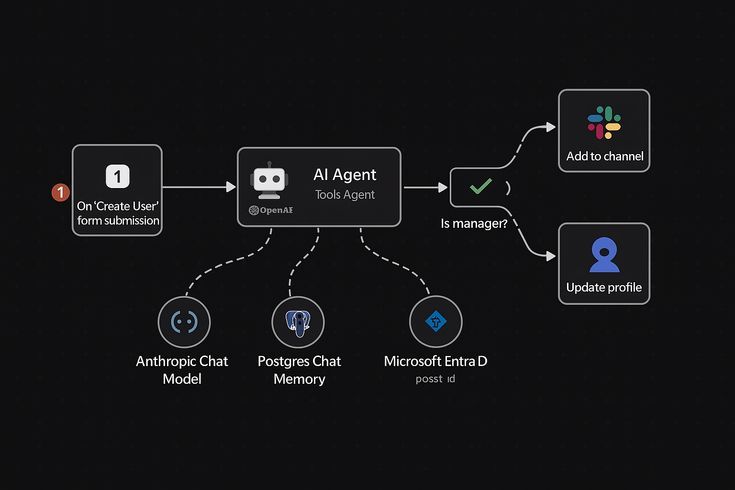
AI agent integration with Microsoft Dynamics succeeds when the agent has one clear job, the right data, and permission to take only the actions it needs. Zylo Technologies reports a six-week rollout and about 3.4× median 12-month ROI for its custom integrations. Here’s how to plan, build, test, and govern one without turning your CRM into an unsafe experiment.
By Zylo Technologies. Updated September 2, 2026.
Step 1: Define the business outcome and agent boundary
The first step in AI agent integration with Microsoft Dynamics is to choose one business result and one contained workflow. Don’t begin with a broad goal such as “use AI in sales.” Pick a measurable job, such as reducing lead research time or routing service cases faster.
Write the workflow as a short chain of events. For example, the agent could read a new lead, compare it with your target customer profile, draft a first email, and send the lead to a seller for review. Each action should have a clear owner and a clear stop point.
Microsoft describes a copilot as an assistant that supports people, while an agent handles a specialized process. That distinction helps you set the right level of autonomy. Read Microsoft’s overview of copilots and AI agents before you choose between a question-answer tool and an agent that can act.
Now write a one-page agent brief. Include:
- Outcome: the business result you want to improve.
- Trigger: the event that starts the workflow.
- Inputs: the Dynamics records and fields the agent may read.
- Actions: the changes or messages it may make.
- Escalation: the point where a person must decide.
- Metric: the number that proves the workflow improved.
Use the metric before you write the prompt. If the goal is faster lead handoff, measure the time between lead creation and seller assignment. If the goal is better service triage, measure the share of cases placed in the correct queue on the first attempt.
We also set a “do not do” list. An early sales agent might summarize a lead and suggest a next step, but it shouldn’t change pricing or approve a discount. Those limits make testing easier and reduce the risk of a vague agent that tries to run half the business.
For teams that need help shaping the workflow, our Dynamics 365 consulting guidance starts with process scope rather than a model choice. That order matters. A strong model can still produce a poor result when the workflow itself has no clear rule.
Key Takeaway
Start with one workflow, one owner, and one success metric. Expand only after the first boundary holds under real use.
Step 2: Map Dynamics data, identity, and permissions
Good AI agent integration with Microsoft Dynamics depends on a data map that says what the agent can see, what it can change, and whose authority it uses. Treat this as an access design task, not a prompt-writing task.
List every source the workflow needs. A lead qualification agent might need account records, contact details, product data, activity history, and a target customer profile. Record the system of record for each field. If the same customer value appears in several places, choose one source and define how updates move.
Next, map the Dynamics objects and fields to the agent’s steps. A simple matrix works well:
For the Sales Qualification Agent, custom security roles may need added privileges, especially when users reassign leads or use a custom model-driven app. Review your Dynamics agent configuration while you build the role map.
Use separate identities for people and agents. An agent should not inherit a broad administrator account because that makes every action hard to explain. Give it a named identity with the least access needed for its task. Keep secrets outside prompts and configuration files.
Dataverse can act as the shared data layer when your agent uses Power Platform components. Governed connections can let agents access approved tools and internal systems under enterprise controls.
Before you build, test three cases: a normal record, a record with missing fields, and a record the user is not allowed to view. The agent should give a useful result in the first case, ask for help or stop in the second, and refuse access in the third.
By now you should have a field map, a service identity, a role plan, and test records that expose access gaps. If you can’t explain why the agent can read or change a field, remove that field from the first release.
| Workflow need | Dynamics data | Access type | Control to add |
|---|---|---|---|
| Research a lead | Lead and account fields | Read | Limit fields to the sales use case |
| Assign a seller | Owner and team records | Read and write | Allow approved users and teams only |
| Draft outreach | Contact and activity history | Read | Mask sensitive fields where possible |
| Send a message | Approved email action | Execute | Require review for new or high-risk contacts |
Step 3: Choose the right Dynamics integration path
The right integration path depends on how much control your workflow needs. A built-in agent may fit a narrow task. A connector may work for a simple handoff. A custom integration is usually the better choice when the agent must coordinate several systems or apply business rules that standard actions can’t express.
Compare the paths against the same questions: How complex is the workflow? How much control do you need over data? Where will errors be handled? Who will own the code and monitoring?
Use native actions when the process is short and stable. For example, a workflow that reads a Dynamics record and starts a Power Automate Flow may not need a custom service. Standard connectors can reduce build time and make ownership clear for a Power Platform team.
Choose a custom integration when the agent must validate data, call outside services, apply conditional rules, or return a structured result to Dynamics. A custom layer can also keep model changes away from your CRM logic. That separation gives your team more room to change the agent without rewriting every business action.
Zylo Technologies uses a bespoke API-based approach for custom Dynamics integrations. Its research-backed product context includes natural language processing, decision automation, predictive analytics, and data orchestration. Zylo reports a six-week deployment and about 3.4× median 12-month ROI on delivered roadmaps, but those figures should be treated as reported business results, not a promise for every workflow.
The choice becomes clearer when you write the failure path. Ask what happens if the customer record is missing, the API times out, or the model returns an uncertain answer. If the connector gives you no clean way to pause, retry, or send the case to a person, it may be too narrow for the job.
Our enterprise application integration guidance uses this decision rule: keep simple work close to the platform, but put complex orchestration behind a controlled service boundary. Don’t buy custom code for a task that a standard action already handles well.
| Path | Best fit | Strength | Watch for |
|---|---|---|---|
| 6sense Email Agent | Buyer intelligence and email automation | Combines comprehensive buyer intelligence with advanced email automation | Typical deployment takes 1–3 months |
| Salesloft Rhythm | Conversation intelligence, AI content generation, and workflow automation | Native integration with Microsoft Dynamics | Confirm the workflow matches its listed capabilities |
| Outreach | Email sequence automation with Kaia AI | Real-time conversation intelligence and smart meeting assistance | Uses native integration with Microsoft Dynamics 365 |
| Zapier | Connecting Dynamics 365 with thousands of apps | Automatically analyzes data, scores leads, and triggers workflows | Uses Zapier to connect Dynamics 365 with thousands of apps |
Pro Tip
Make the integration path earn its complexity. If a workflow has one trigger and one safe action, start with a native connector. Add a custom API when rules, systems, or audit needs justify it.
Step 4: Build the agent’s tools, actions, and approval workflow
Build the agent as a small set of named tools, not as one giant prompt. Each tool should perform one controlled task and return a predictable result.
For a lead workflow, tools might include “Get lead details,” “Check target profile,” “Draft outreach,” and “Request seller approval.” The names should describe the action. Avoid a tool called “Handle lead,” because no one can tell what it may do.
Define an input and output contract for every tool. A contract is a fixed shape that tells the agent and the workflow what data to expect. For example, a validation tool might return:
- A pass or fail result.
- The record IDs that need attention.
- A short reason for each failure.
- A safe next action.
A workflow pattern uses this approach. The agent receives business rules and a payload through named tools, then returns structured outputs that drive later workflow actions. The important lesson is simple: an agent should return usable fields, not a paragraph that another system must guess how to interpret.
Keep instructions separate from tool access. Instructions define the job and decision rules. Tools define what the agent can touch. This split lets you update a policy document without changing the integration code, while still keeping the available actions narrow.
Approvals belong in the workflow, not in a vague sentence such as “ask a human when needed.” Set an approval condition. Examples include a new customer, a high-value opportunity, a message containing a legal claim, or a change to a financial field.
When approval is required, show the reviewer the source record, the agent’s proposed action, the reason, and the exact fields that will change. Give the reviewer two clear choices: approve or reject. Store that decision with the run ID.
Teams building a more complex system can use Zylo Technologies’ AI agent architecture guidance to review tool scope, execution rules, and service boundaries. We prefer a small first toolset. More tools increase the number of paths the agent can take, which makes failures harder to trace.
Run the agent in read-only mode first. Let it produce research or recommendations without changing Dynamics. Once the outputs are stable, enable one write action at a time and review the audit trail after each release.
Step 5: Test, deploy, govern, and measure the agent

Testing AI agent integration with Microsoft Dynamics means testing decisions, permissions, failures, and business results. A successful demo proves very little if the agent fails on incomplete data or takes an unsafe action.
Start in a sandbox with copied or synthetic records. Build a test set that includes common cases and awkward ones:
- Complete records with expected values.
- Missing fields and conflicting customer data.
- Duplicate records and stale activities.
- Users with different security roles.
- API failures, timeouts, and duplicate requests.
- Prompts that try to force an action outside the agent’s scope.
Score each run against a written expected result. Check whether the agent used the correct record, made the right recommendation, returned the required fields, and stopped when it lacked enough information. Test repeat runs too. A retry should not create duplicate emails or duplicate CRM updates.
Deploy in stages. First release read-only research. Then add recommendations. Finally add carefully chosen write actions. Export the tested agent as a solution when your Dynamics setup supports that path, then import it into the target environment after review.
Governance needs an owner after launch. Assign someone to review failed runs, approve tool changes, refresh source data, and decide when the agent should pause. Keep a version history for prompts, rules, connectors, and API code.
Security needs the same discipline. Define the agent’s identity, scope, tool access, and auditability before expanding autonomy. Use short-lived improved access when possible. Allowlist actions instead of giving the agent broad access and hoping the prompt keeps it in line.
Measure the workflow with both business and system metrics. Business metrics might include time to assign a lead, first-contact completion, case routing accuracy, or hours spent on manual review. System metrics include failed tool calls, approval rate, average run time, duplicate actions, and the number of runs sent to a person.
Then track value against the baseline you recorded in Step 1. If the agent saves time but creates more rework, the workflow has not improved. If it handles fewer cases but makes safer decisions, that may be the right trade for a high-risk process.
Our AI agent lifecycle management framework treats launch as the start of measurement, not the end of delivery. Review the first production runs closely, set a rollback rule, and expand only when the data supports it.
Key Takeaway
An agent is ready to grow when its actions are traceable, its failures are recoverable, and its business metric improves without adding hidden manual work.
FAQ
What is AI agent integration with Microsoft Dynamics?+
AI agent integration with Microsoft Dynamics connects an agent to Dynamics data and approved business actions. The agent can interpret a request or event, use permitted tools, and return a result or complete a workflow. The safest designs define the records, actions, identity, approval rules, and audit trail before the agent receives write access.
Can Microsoft Dynamics support custom AI agents?+
Yes, Microsoft Dynamics can support custom AI agents through tools such as Dataverse, Power Apps, Power Automate, APIs, plugins, custom code, and Azure services. The best route depends on workflow complexity. A native action may fit a short task, while a tailored integration gives more control over rules, retries, data contracts, and monitoring.
How long does a Dynamics AI agent integration take?+
Deployment time depends on data quality, permissions, workflow scope, and testing needs. Zylo Technologies reports a six-week rollout for its custom integration work. Treat that as a planning reference rather than a fixed promise. A small read-only agent may move faster, while a multi-system agent with approvals needs more design and test time.
How do you secure an AI agent in Dynamics?+
Secure an AI agent with a dedicated identity, least-privilege access, approved tools, short-lived improved permissions, and an audit trail. Test denied access as carefully as successful access. The agent should stop when it lacks permission or reliable data. Keep secrets out of prompts, and review every action that changes a customer or financial record.
What should you measure after launch?+
Measure the business result first, then track system health. Useful measures include time saved, routing accuracy, approval rate, failed actions, duplicate updates, run time, and manual rework. Compare each result with the baseline from the old process. A faster workflow that creates extra correction work is not a successful integration.
Conclusion
Start with one Dynamics workflow that has a clear owner and measurable value. Map its data and permissions, give the agent a small toolset, and release write actions only after read-only testing proves safe. If the workflow needs custom orchestration, Zylo Technologies can help you design the integration and connect the first production milestone to a business metric.
Share this article
About the author

Chief AI Officer and former NVIDIA AI Consultant specializing in enterprise AI strategy and digital transformation.
Author at Zylo
Dr. Aliya Nur Balisani is an AI leader focused on helping organizations adopt artificial intelligence in practical and profitable ways. With experience in enterprise AI strategy, automation, and emerging technologies, she provides insights on generative AI, autonomous systems, business transformation, and the future of intelligent enterprises.